Adding photo attachments using the Back of Truck System (BOTS/TruckSiS) mobile app
Prefer to use your phone instead of the scanner? This article will show you how to use your phone to add attachments to a stop.
Capture photos at a stop
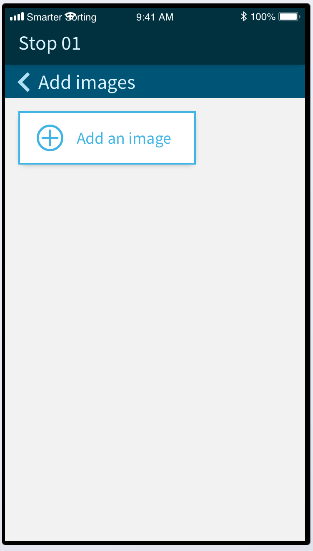
Some retail pickups require a photograph to be captured at each site (e.g. a photo of the waste accumulation area, etc.) Technicians can take photos as needed on the TruckSIS Mobile App. To get started, open the mobile app and select Add images.
- Select Add an image to bring up the phone camera.
- Capture an image and save it to the stop on your mobile device by entering a Type and Description.
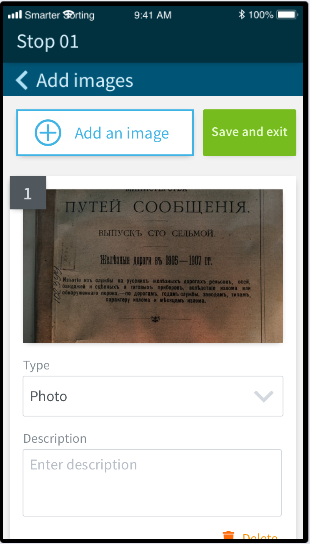
- When you are complete taking photos, select Save and exit.
- When you are in range of the TruckSIS wifi with your TruckSIS mobile app open, the photo attachments will automatically sync from the mobile app to the TruckSIS. You will be able to view them in Attachments.
Still stuck? Contact support or email support@smartersorting.com Either way it lands straight in our ticket queue.