Back of Truck System (BOTS/TruckSiS) Quickguide
Getting started
Q: Download TruckSIS mobile app
A: You can login on the mobile app with your TruckSIS account. To download the TruckSIS Mobile App. Click Add TruckSIS to Home Screen at the bottom of the screen and the app icon will be added to your phone's home screen. Tip: If this prompt does not appear, you can select the menu dropdown on the top right and select Add to Home screen. For more information, select Mobile App
Q: TruckSiS mobile website
A: Mobile App or Adding attachments via mobile app
Q: Sign in and out of the unit
A: For sign in, you will need the pin you created. You can select Forgot PIN to receive an email to reset your PIN. To logout - Select Logout on the left-hand navigation bar from any screen. The system will confirm you want to logout and go back to the Welcome screen.
Q: Creating an account on your TruckSiS device
A: Select Create an account. Enter your first name, last name, work email address (use either @usecology.com or @eqaionline.com), and work phone number. Select Next: Create PIN once complete. Create your unique 4-digit PIN using the keypad. Once complete, select Next: Confirm PIN to re-confirm the 4-digit PIN and create your account. Upon initial login, you will be taken to the My trips screen and an email will be sent to your work address with instructions to download the TruckSIS Mobile App.
Software
Q: Test your TruckSiS software and perform system diagnostics
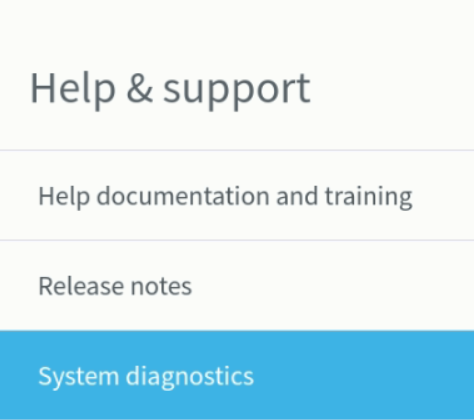
A: Make sure the TruckSIS is powered on and has booted to the login screen. Select Help and Support from the navigation bar on the top right of the screen. From the Help and Support tool, select System diagnostics menu item from the navigation list on the left. Follow the on-screen instructions to complete testing.
Q: Missing trips, stop information, or approvals
A: Have you contacted Field Services to have them add this information on their side? Once they do, and set to dispatch, this will begin to Sync on the TruckSIS unit. The driver can then click the Sync button to check for the update. Once syncing, do not hit the button again, as large changes will take a long time to download.
Check the connection on the top of your Cradlepoint unit, there should be 4 blue bars if full connection. You can also use your TruckSis Monitor to check connection. If there is a bad connection, move your truck to another location to try the sync again.
Q: Sync trip data to device
A: You can select Sync Trip on the top navigation bar to fetch any updates to your TruckSIS. The wheel will spin while the TruckSIS searches for an update. If an update is found, the TruckSIS will begin syncing until the system indicates the sync is successful. Do not turn the unit off during a sync or it will start from the beginning. Large updates may take a bit of time to sync. Click here for more information on syncing data

Q: How do I consolidate CCID's?
A: Consolidating CCIDs
Q: How do I complete a stop on the device?
A: Click here for more information on completing a stop.Q: How do I add an approval to a stop?
A: For steps on adding an approval to a current stop, click hereQ: How do I add empty bottles on my TruckSiS unit?
A: How to add empty bottlesQ: Adding full inventory pharmacy items (NDCs)
A: In full inventory states or other regulated instances, pharmacy waste pickups require a record of each drug (pharmacy item) and a printed Pharmaceutical Record of Distribution. You can add pharmacy items to the current stop with the Add Rx item feature. For more information, select this articleHardware
Q: Resolve a frozen TruckSIS screen
A: The unit does not handle cold weather well, can you try warming up the monitor with a dry, soft cloth or hair dryer? Also, remove any gloves that you are wearing or try a stylus. Slowly tap on the screen to wake it.
Q: Cradlepoint modem sim card and ethernet set-up
A: Properly install a SIM card and plug the ethernet cord into the correct port for a Cradlepoint modem. Unscrew the sim door cover and remove. Insert sim card with notched end first, contacts facing down, and press until it clicks. Screw the sim card cover back on. Plug the power cable in and plug the ethernet cable into the port labeled LAN. Click
Q: The first label prints but a blank label prints before the second label
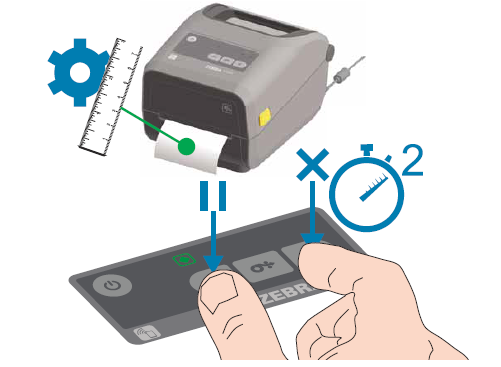
A: You need to recalibrate the printer. To do so, Hold PAUSE + X buttons until pages start printing.
Q: Reset my label printer
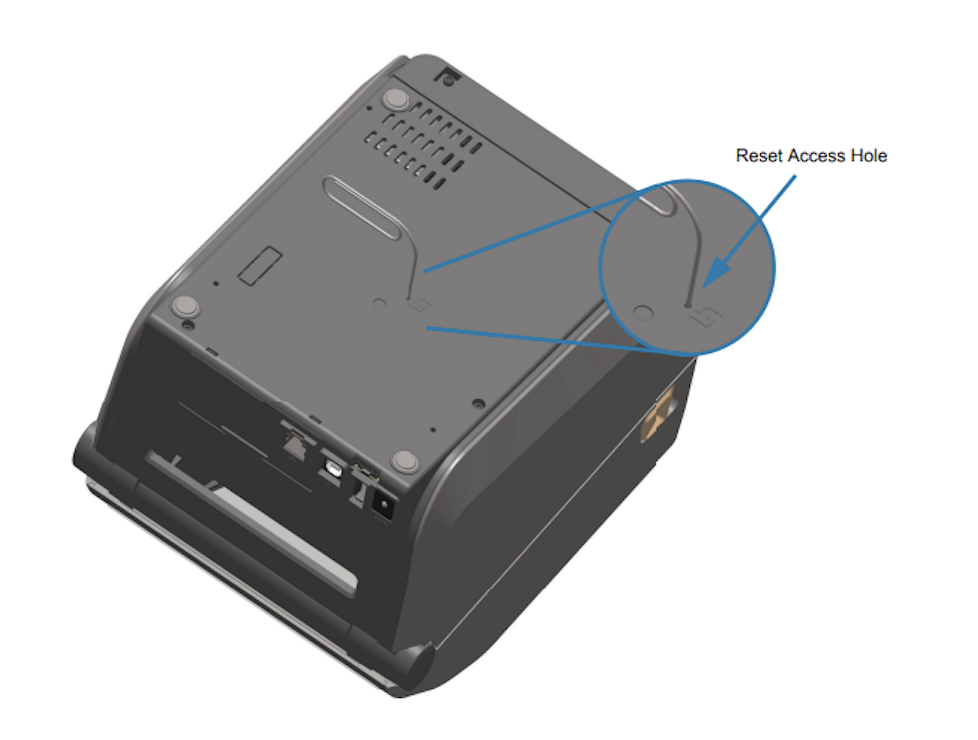
A: Turn Off the label printer. Turn back on while holding PAUSE +. FEED, holding it until the STATUS light is the only light on. Now recalibrate by holding PAUSE + X. If this does not resolve, you can try a Factory Reset by turning the label printer over and use a paperclip to press the Reset button for 1-5 seconds. The printer will reset and automatically print a configuration label, and network label if present. For videos related to the TruckSiS label printer click here.
Q: Replace the label roll in TruckSiS label printer
A: To access the media compartment, you must open the printer. Pull the release latches towards the front of the printer and lift the cover. Open the media roll holders, orient the media roll so that its printing surface will face up as it prints. Place the media roll on the roll holders and release the guides - verifying the roll turns freely. Pull the media so that it extends out of the front of the printer. Push the media under both of the media guides. Close the printer. Press down until the cover snaps closed. *Once closed, press the Feed (Advance) button to prepare the media for printing*
Q: My dot matrix printer is not printing aligned
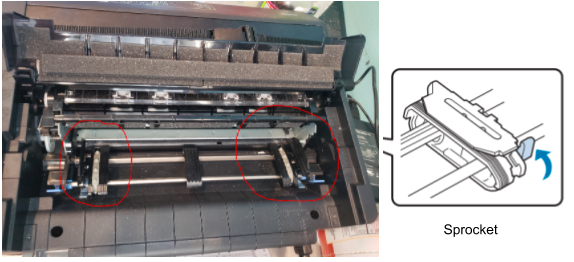
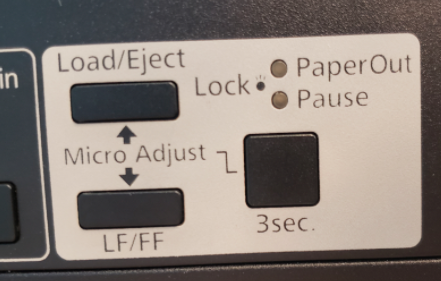
A: You can do a manual horizontal adjustment to align paper using blue tabs near the black paper sprocket that goes into the paper holes. If that does not resolve, you can do a vertical alignment by removing the paper and turning the printer off with the power button on the lower, front right of the printer. Then, turn back on while holding all three buttons on the front of the printer for 5 sec or until beeps. Reload paper and print.
Q: Dot matrix printer not working
A: Is the red pause light illuminated front right? If not, turn off and back on, power button front right bottom. Then try again.
Q: Factory reset my dot matrix printer
A: Remove any paper from the printer. Turn off the printer and make sure all lights go out. Hold down all 3 buttons in the white box while turning the printer back on. Keep holding until you hear a beep (about 5 seconds) and the printer starts churning. Once you hear the beep, you can let go. Load paper into the printer. Printing should now be vertically reset.
Q: Print my documents
A: Navigate to Print documents in the work queue to access all documents. Documents are divided into sections based on the type of paper used. Select Print selected document(s) to begin printing the chosen documents
Q: Document scanner not working
A: Is the red light on? If not, make sure the USB is connected. If connected to a dongle and not working, plug directly into the monitor on the right side. If nothing resolves, the driver can use the TruckSIS app on their phone.
Q: How do I calibrate the drum scale?
A: Click here for more information.
Q: How to load paper in the dot matrix printer?
A: For more information on loading paper, click hereStill stuck? Contact support or email support@smartersorting.com Either way it lands straight in our ticket queue.