Back of Store System (BOSS) frequently asked questions
Back of store troubleshooting FAQs
Software
Q: Create a new account on the BOSS unit
A: On the main screen, click the login button at the bottom-right. On the next screen, select 'create account' on the bottom center of the screen. Fill out the fields, then select 'continue'. Create a four digit pin. Confirm the pin. Now, your first and last name should pop up and if accurate select 'that's me!'. The unit will then play a training video that has a quiz at the end.
Q: Update BOSS pin/password
A: Select the red user icon on the bottom of the screen. Click the light gray 'change password' button. Enter your previous pin and then choose and enter your new one. When done, press 'continue' at the bottom of the screen and you are done.
Q: Remove users from the device
A: Please contact Smarter Sorting Support to remove users from your unit
Q: Adding a new Costco donation partner to BOSS unit
A: Send a request to Support using the Costco donation partner google sheet. Support will then add the donation partner in and add it to your unit. They may need to remote into your unit to perform this task.
Q: Edit logs
A: Smarter Sorting Support can assist you with editing weights, quantity, or deleting the log. Send an emailed request to Support@smartersorting.com
Q: Processing an item without a SKU or UPC
A: In order to process an item, it must have a UPC or SKU. If you are processing an item that is sold in your store, use your store's inventory system to pull the item's UPC or SKU* and manually enter that number on the 'scan item' screen. If you are processing a non-inventory item, please follow your organization's standard operating procedure for the processing of unknown items.
Q: Adjust the volume on the BOSS
A: On the BOSS, click on 'help', then tap 'configure hardware' and select 'audio'. Lastly, choose 'volume' and adjust accordingly.
Q: Troubleshooting Wegmans unit wifi
A: First, make sure the Linksys adapter is plugged into the side of the column above the scanner. If it was already, Click ? on the Main Screen > Device settings > Network> WIFI > Search for Networks > Connect to Wegmans guest WIFI again.
If you get an Oops--We couldn't find any networks near you try unplugging your BOSS unit completely and plugging back in. Repeat steps above to connect to wifi.
If you still get a “Oops we couldn't find any networks near you”. Did you move the BOSS unit location recently? Can your phone connect to WIFI in the new location? If you still have issues, it’s possible the USB cord on the column is faulty. Please contact Support.
Hardware
Q: Hardware of the unit
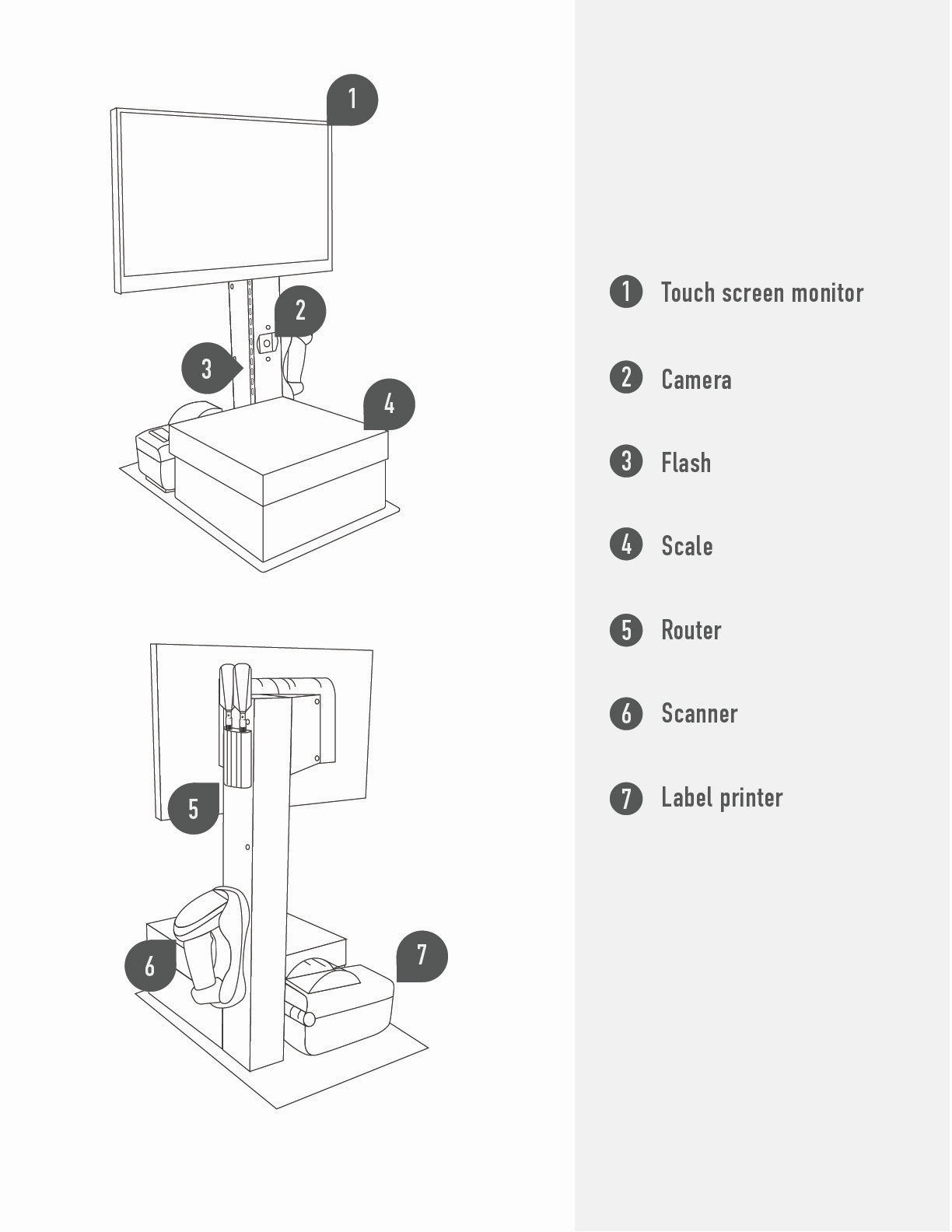
Q: Powering on or resetting the unit
A: Tap the Touch LED LCD Monitor, wait 4-5 seconds for the monitor to come on because it may be in Sleep Mode. To reset, select the User Icon on the bottom left of the screen and then tap Restart
Q: Resync scan gun
A: Point the scanner at the barcode in the gun holder and push trigger. If that does not work, try 'settings' > 'calibrate scanner'. If that all fails, try a reset. To reset, place the scan gun into the cradle and hold the trigger for 20 - 30 seconds until the scanner reboots. You will then need to use the Support Only scan gun reset barcodes provided with your cart to reconfigure the scan gun. If you do not have this sheet, reach out to Support.
Q: Empty scale is not showing zero
A: Zero out your scale if it's empty but showing weight. To do so, use the 'zero scale' button on the bottom of the screen.
Q: Calibrate scale
A: Make sure that you are logged in. Then, try to calibrate at least two times. If that is not successful, try a restart from the screen and try again to calibrate. If that doesn't work then disconnect power for about a minute and reconnect. Allow the unit to start up and then log in. Try to calibrate a few times.
Q: Lock and unlock the planar monitor
A: Press and hold the 1 button +▼ button for 3 seconds.
Q: Label printer not printing
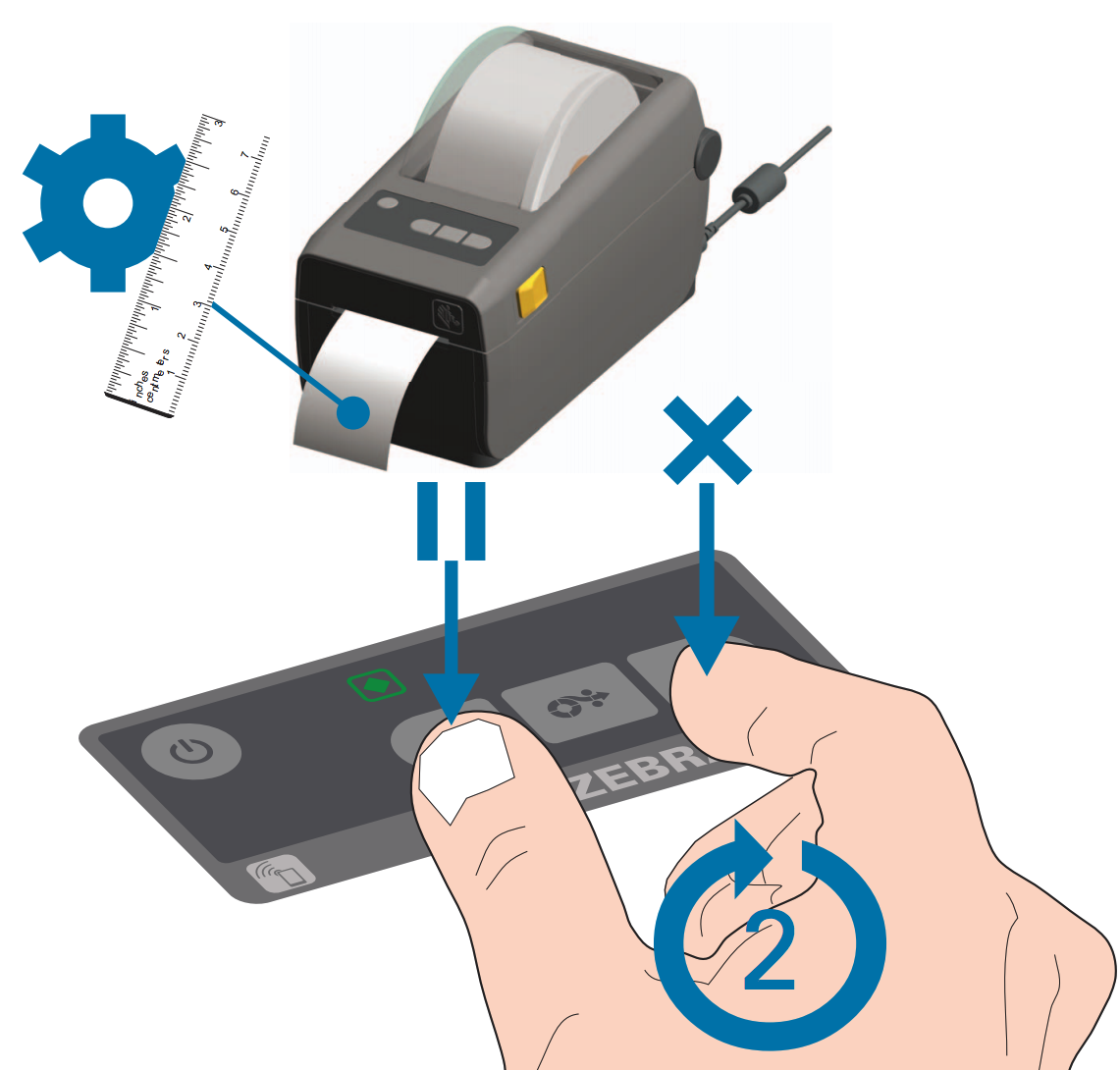
A: Hold the power button for 5 seconds until all of the lights flash amber, it will turn off. Then, press power once and a single amber light will turn on - wait for the printer to boot up to green after 15 seconds. Print a test label by holding Pause + X buttons until pages start printing.
Still stuck? Contact support or email support@smartersorting.com Either way it lands straight in our ticket queue.