Creating an account on the Back of Truck System (BOTS/TruckSiS)
This article will walk you through creating an account on your TruckSiS device.
Topics
- Create a new TruckSIS account
- Download TruckSIS Mobile App
Create a new account
The TruckSIS welcome page opens on bootup.
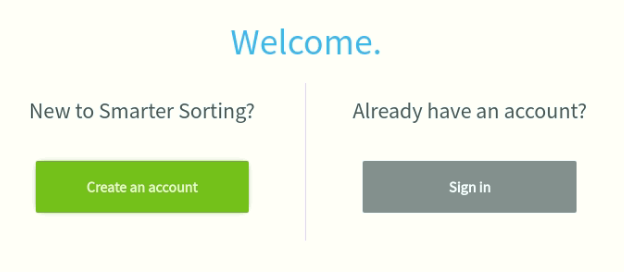
- Select Create an account.
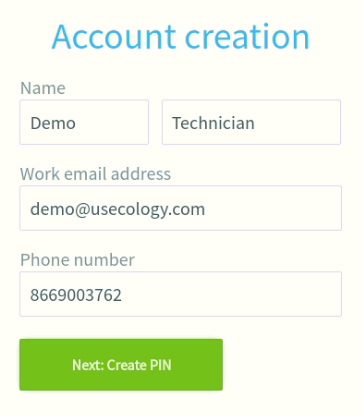
- Enter your first name, last name, work email address (use either @usecology.com or @eqaionline.com), and work phone number. Select Next:Create PIN once complete.
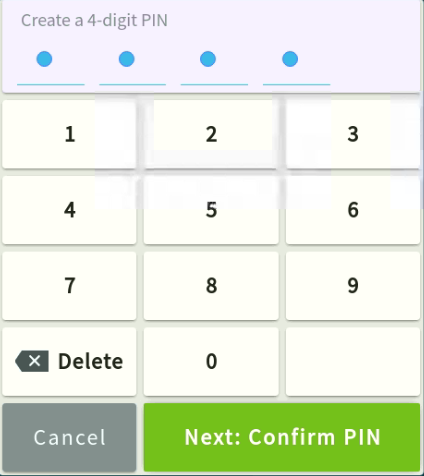
- Create your unique 4-digit PIN using the keypad. Once complete, select Next: Confirm PIN to re-confirm the 4-digit PIN and create your account.
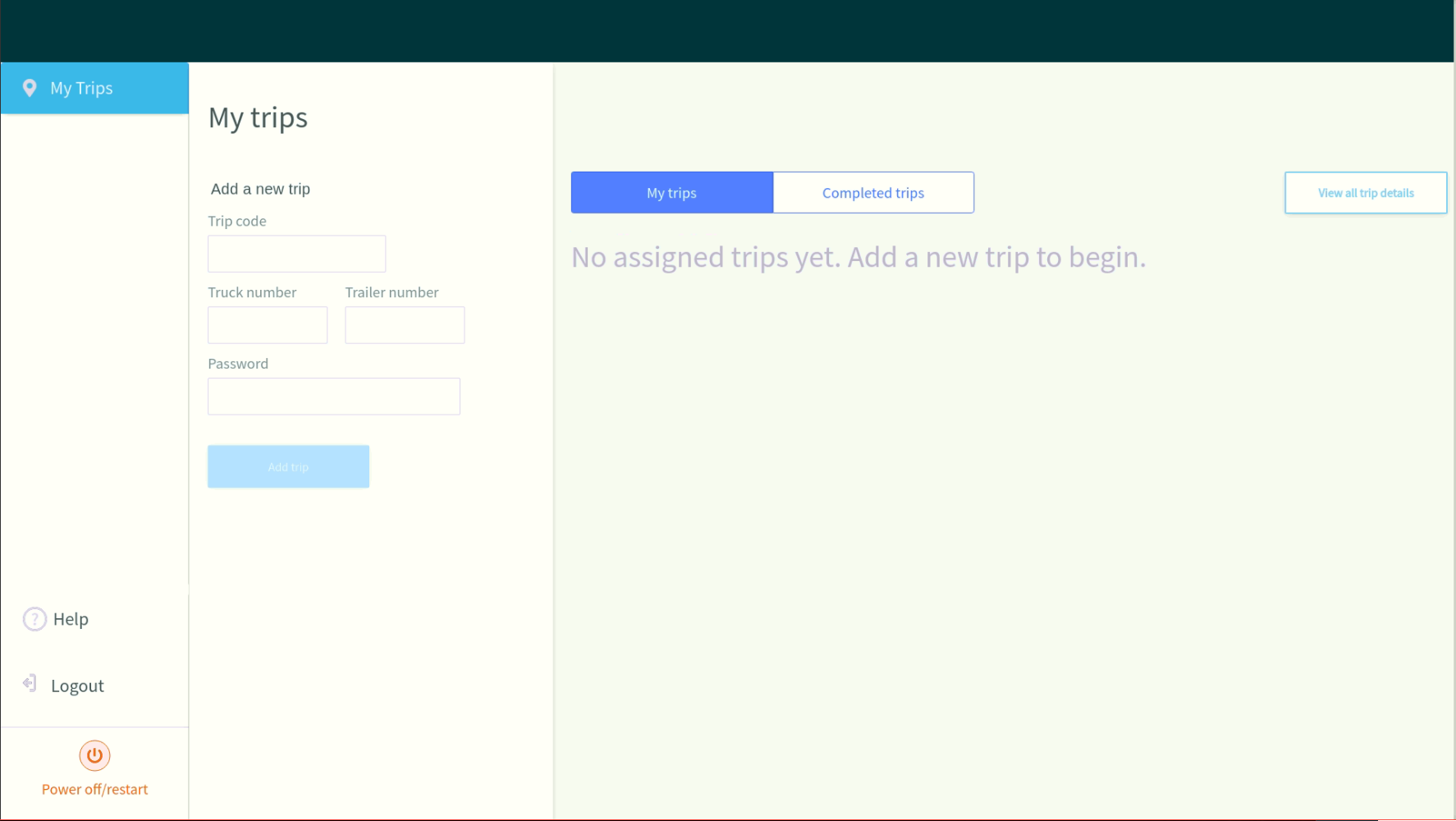
- Upon initial login, you will be taken to the My trips screen and an email will be sent to your work address with instructions to download the TruckSIS Mobile App.
Download TruckSIS Mobile App
You can login on the mobile app with your TruckSIS account.
To download the TruckSIS Mobile App:
-
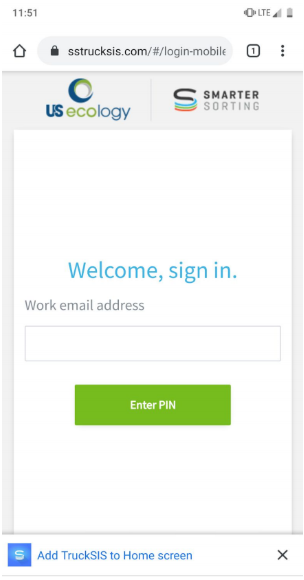
Open Google Chrome on your company Android mobile device and enter:
http://sstrucksis.com
- Click Add TruckSIS to Home Screen at the bottom of the screen and the app icon will be added to your phone's home screen.
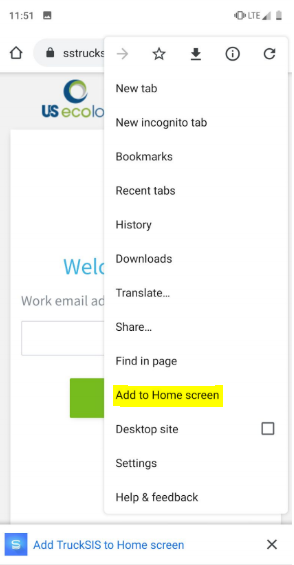
Tip: If this prompt does not appear, you can select the menu dropdown on the top right and select Add to Home screen.
Still stuck? Contact support or email support@smartersorting.com Either way it lands straight in our ticket queue.