How do I replace the label roll in the Back of Truck System (BOTS/TruckSiS) label printer?
Time to change the labels, no problem. These step by step instructions will walk you through the process of getting the labels switched out.
Issue
Replacing the the labels is easy if you know what you're doing. If you don't you can damage the hardware and it can be a frustrating task to complete.Resolution
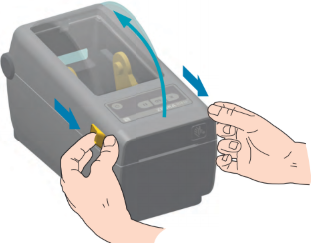
1) To access the media compartment, you must open the printer. Pull the release latches towards the front of the printer and lift the cover:
2) Open the media roll holders, orient the media roll so that its printing surface will face up as it prints. Place the media roll on the roll holders and release the guides - verifying the roll turns freely: (image on right is real-life example of how wide the lid will open)
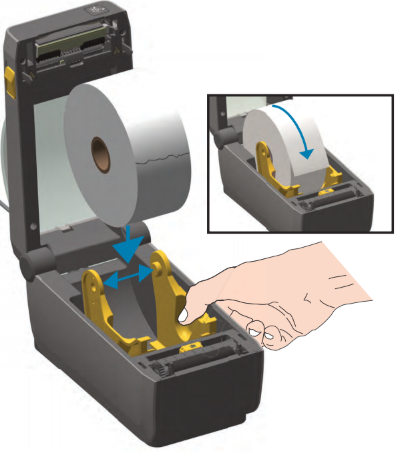
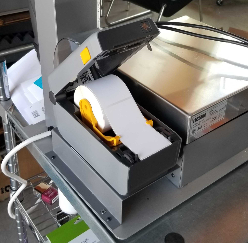
*The roll must NOT be resting on the bottom of the media compartment*
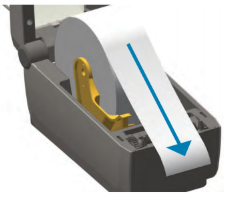
3) Pull the media so that it extends out of the front of the printer:
4) Push the media under both of the media guides:
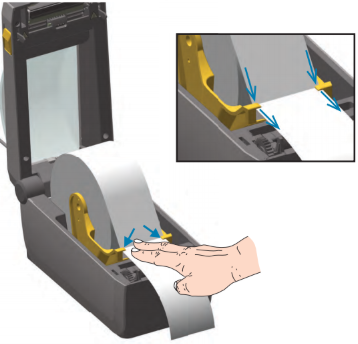

5) Close the printer. Press down until the cover snaps closed:
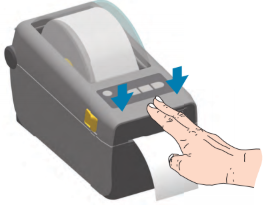
*Once closed, press the Feed (Advance) button to prepare the media for printing*
If after following these steps the labels are not properly loading and/or printing, please call Smarter Sorting's support.
Still stuck? Contact support or email support@smartersorting.com Either way it lands straight in our ticket queue.