How do I edit product details after submitting for classification?
After submitting your item for classification you may have noticed that you missed some information or input details incorrectly. To make edits on your items please follow the steps listed below. The steps vary depending on the state of your product.
If your item is in the 'Being Classified' section:
This means your item is currently classifying and is within the classification pipeline. Please reach out to Smarter Sorting Support to have the item moved back to 'pending requests' in the Product Intelligence Platform. You will then be able to add or update all of the item information. However, because it had to leave the process, the estimated time for classification will reset.
If your item is in the 'Classified Products' section:
You can easily change your Product Name, Brand, or Retailer Identifier while the item is in Classified.
To make edits to the retailer identifier, click 'add/edit retailer identifiers'
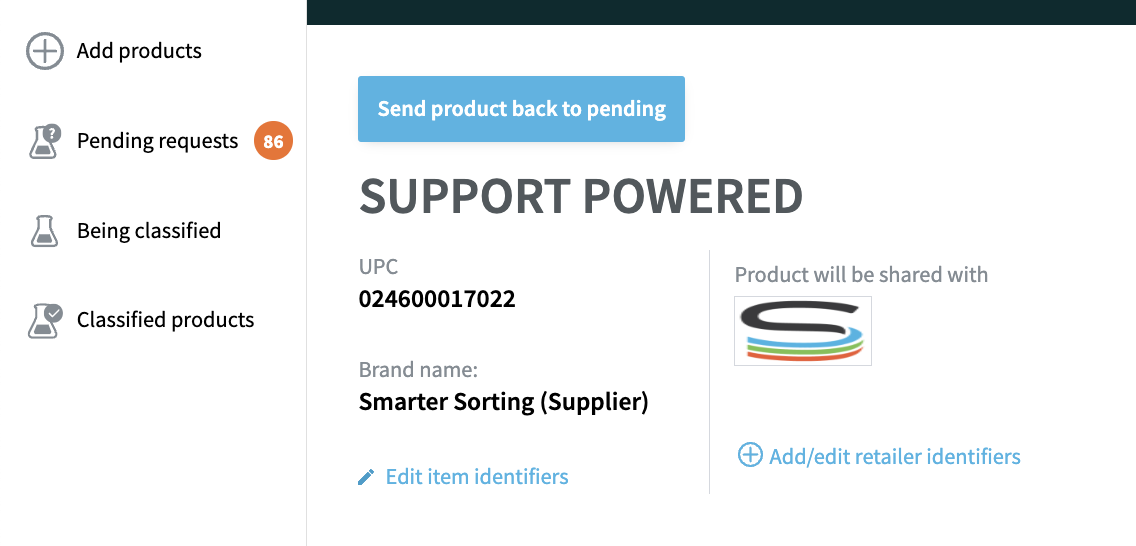
To make edits to Product Name or Brand, find your item in the Classified section. Then click the blue 'Edit Item Identifiers' button.
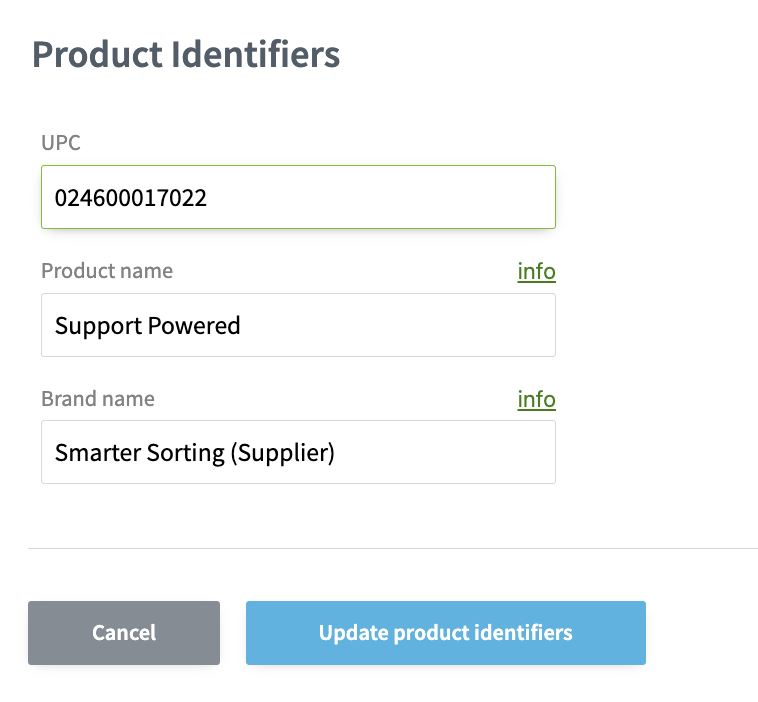
Then, make edits in the pop-up and once done click 'update product identifiers'.
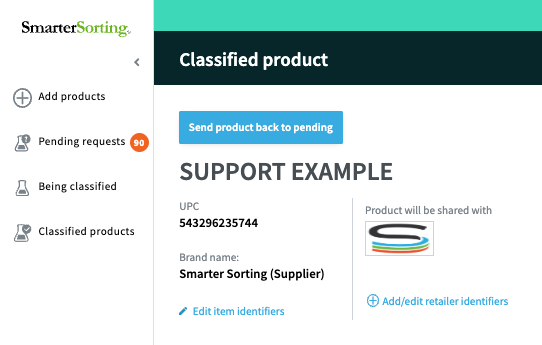
For other edits, you can send the item back to pending and make edits as needed. To do so, find and open the item you need to edit in 'classified products'. In the page that opens, click the blue button at the top of the screen labeled 'Send product back to pending'.
Now, click 'Pending Requests' on the left and search for your UPC. After making edits please resubmit your item as we will need to re-classify it.
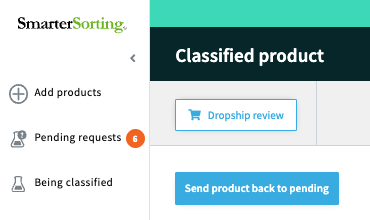
Please note: If your item is eligible for dropship review you will have another button above the Send back to pending button. If you send dropshipped items back to pending you will need to then re-send for dropship after the item has completed classifying.
For more information on dropship please review this Article
We never mind assisting you with edits, but as a best practice please make sure to review all product data entered while the item is still in the 'Review and Send' stage before submitting for classification.
To make edits to your items in Pending Requests:
Search for the UPC and locate it in pending requests. It will have an orange 'corrections needed' status
Select the product name to open the item.
Once the item opens, you will be able to edit the Product Name, UPC, or Brand Name. You can also add or edit the retailer SKU/item number.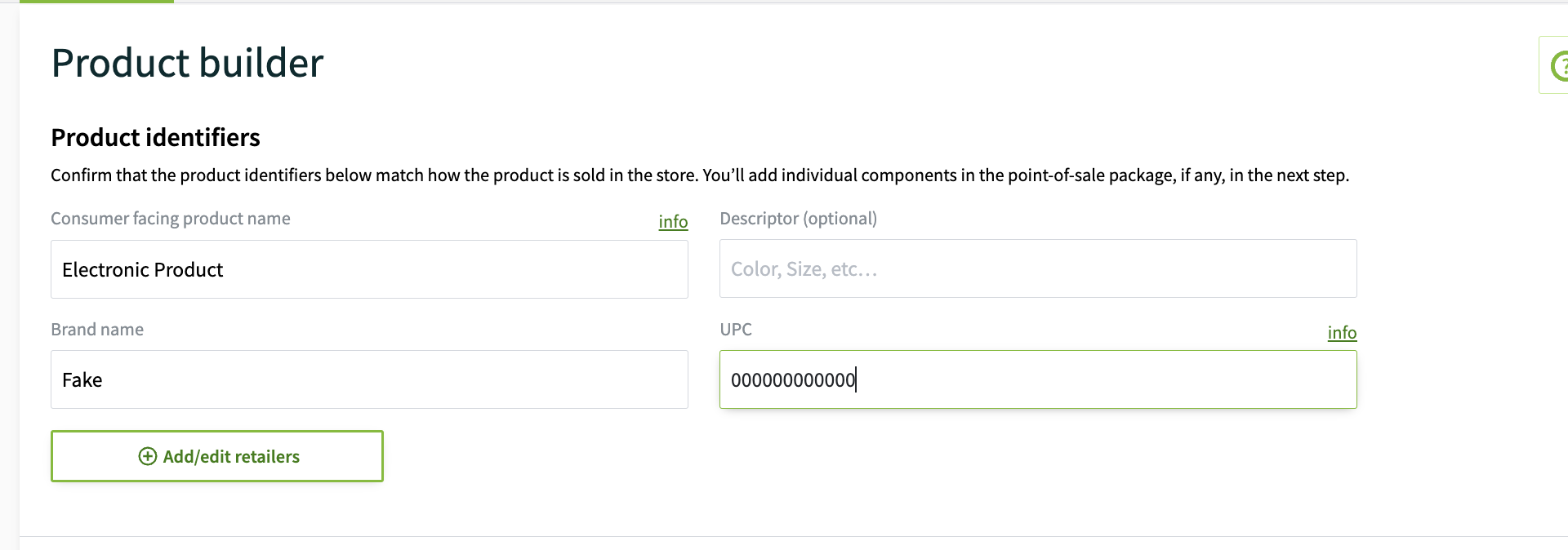
To edit more options, you will need to click into your components.
You can now update your SDS without losing your ingredient information.
After clicking 'upload new' for the SDS, a modal will pop up that asks if any of the ingredients or product attributes are changing from what is currently submitted. It’s important to answer this question correctly since these inputs impact the product’s classification.
- The user should answer NO if all the data on the summary page matches that data in the new SDS
- If the user Selects “No, review inputs”, we will parse the SDS provided and replace any previously parsed data with newly parsed data without taking the user away from the [Chemical Composition Summary] page. We have added a reminder above the “Save component” button that encourages the user to give the inputs one more review before resubmitting the product for classification
- NOTE: We are only replacing parsed data in this flow. For example, if the user previously provided a pH for us and their new SDS does not have a pH listed, we will keep the pH they previously entered and not replace it with a null value. Likewise, we are not deleting any of the ingredients from the comma separated list
- The user should answer YES if any of the data on the summary page does not match the data in the new SDS
- If the user selects “Yes, update inputs”, we will parse the SDS and then take them back into the normal registration flow so that they can make updates to their component inputs more easily. NOTE - none of the ingredient data is being wiped!
Once done, resubmit the item for classification.
Video walkthrough:
If you have any questions, please reach out to Support at support@smartersorting.com or via the 'chat with an expert' option.
Still stuck? Contact support or email support@smartersorting.com Either way it lands straight in our ticket queue.