Printing Documents on your Back of Truck System (BOTS/TruckSiS)
Learn how to print documents using your TruckSiS device.
Print documents
Navigate to Print documents in the work queue to access all documents. Documents are divided into sections based on the type of paper used.
- Select a single document, multiple documents, a section of documents (by selecting the check mark above the section), or use Select all to select all documents.
- Select Print selected document(s) to begin printing the chosen documents.
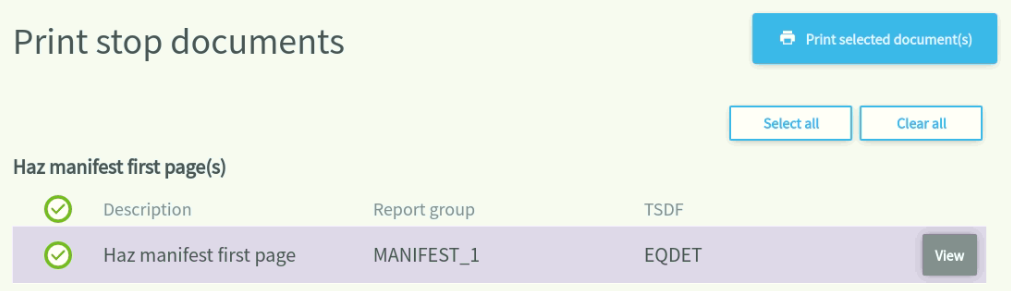
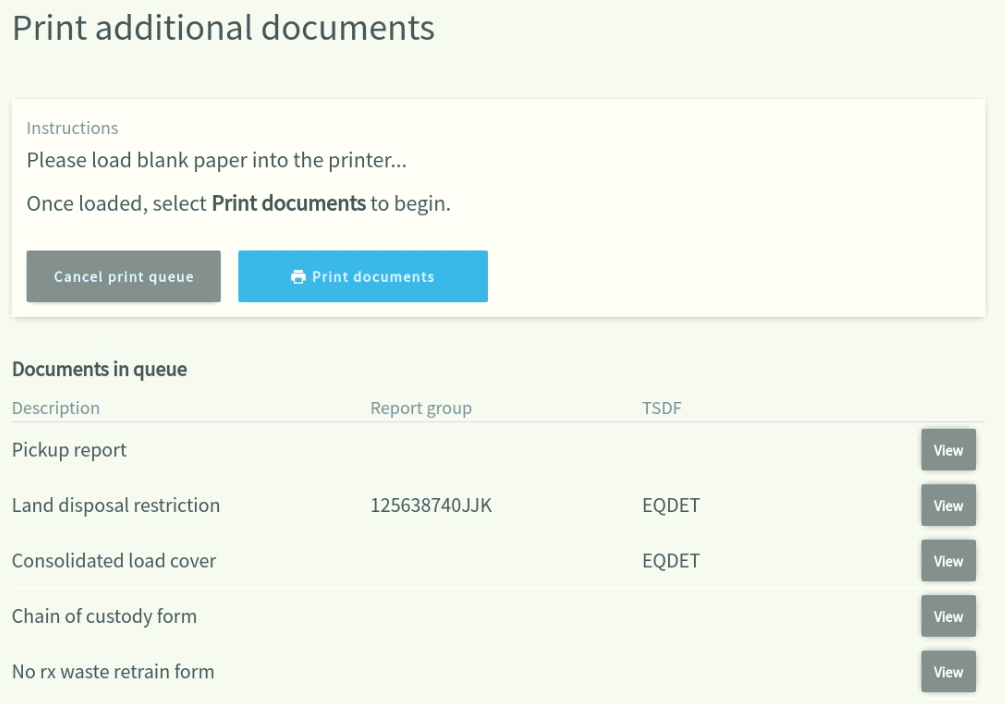
- The system will ask you to load the correct paper template into the dot matrix printer for the first section of document(s) chosen. When the paper is loaded, select Print document to begin.
- Manifests print on manifest template paper. All other documents print on blank paper and are labeled Additional documents.
- Enter the manifest number once a manifest finishes printing. The manifest number will appear in the Report group for applicable documents.
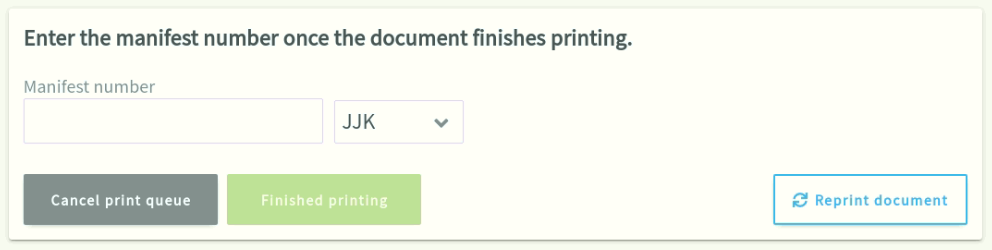
Reprint documents after a stop has been completed
Step 1 click Stop list
Step 2 click completed stops
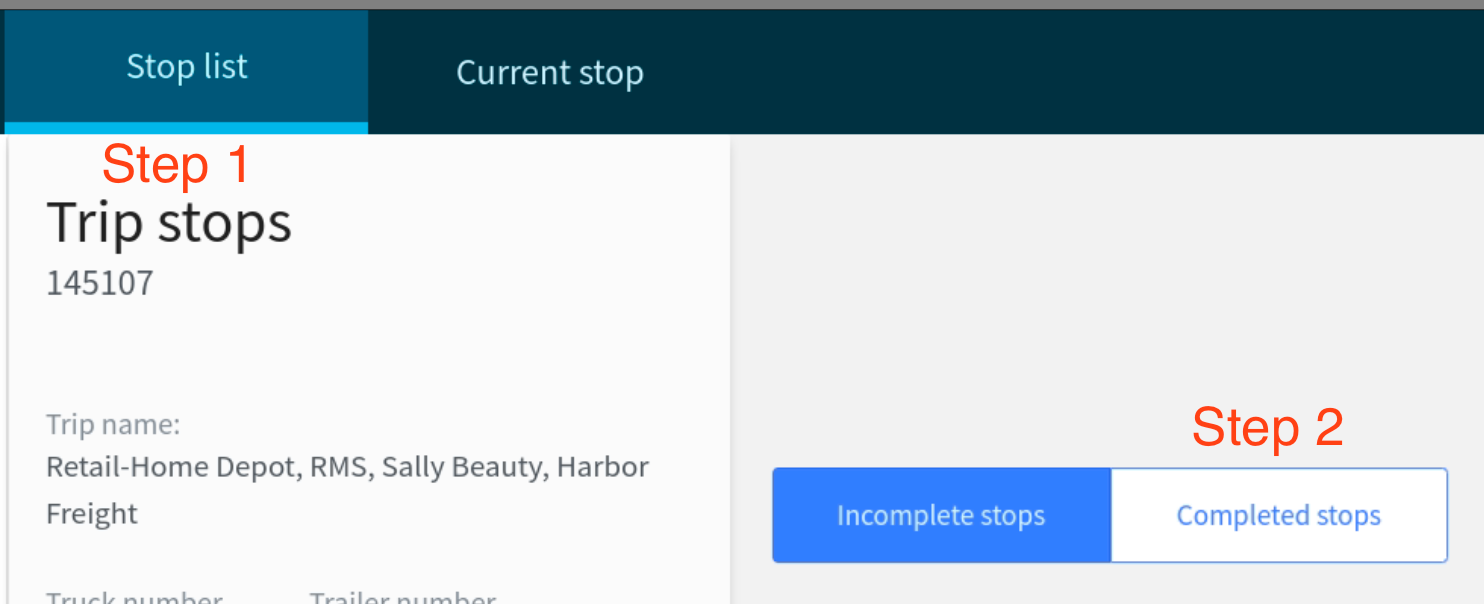
Step 3 click Continue on the desired stop
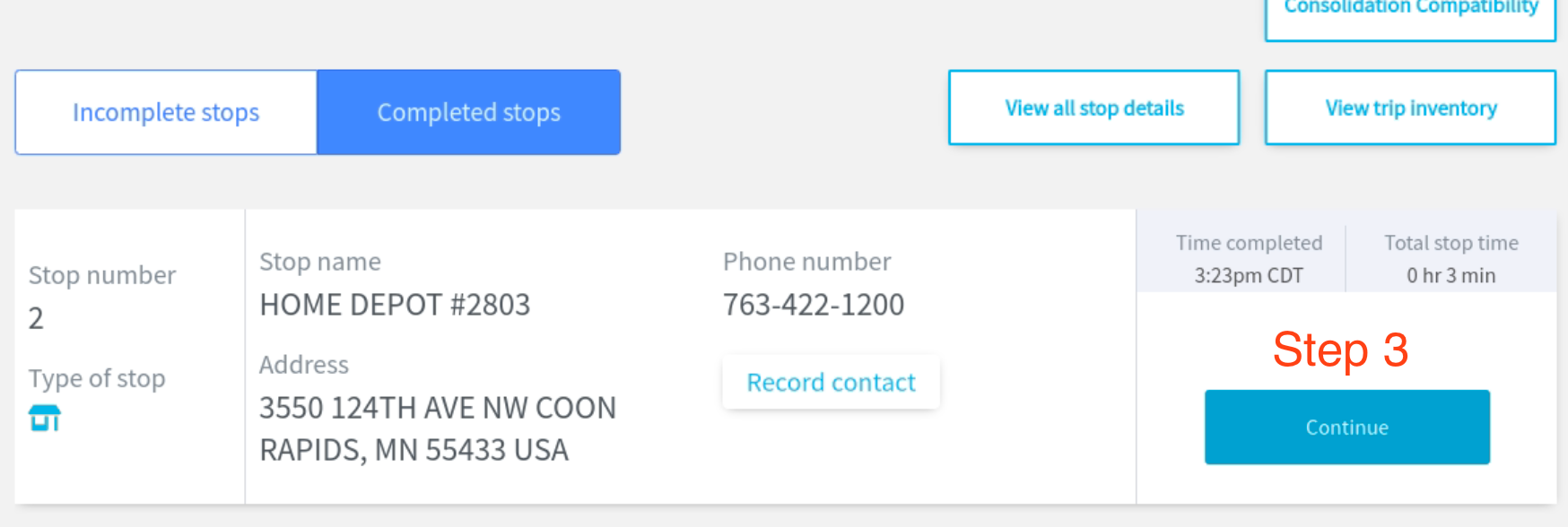
From here the manifest and labels can be reprinted.
Once a stop is completed, all changes are locked and no waste can be added or removed. Contact Retail Services for guidance on how to proceed if you completed a stop prior to logging all waste.
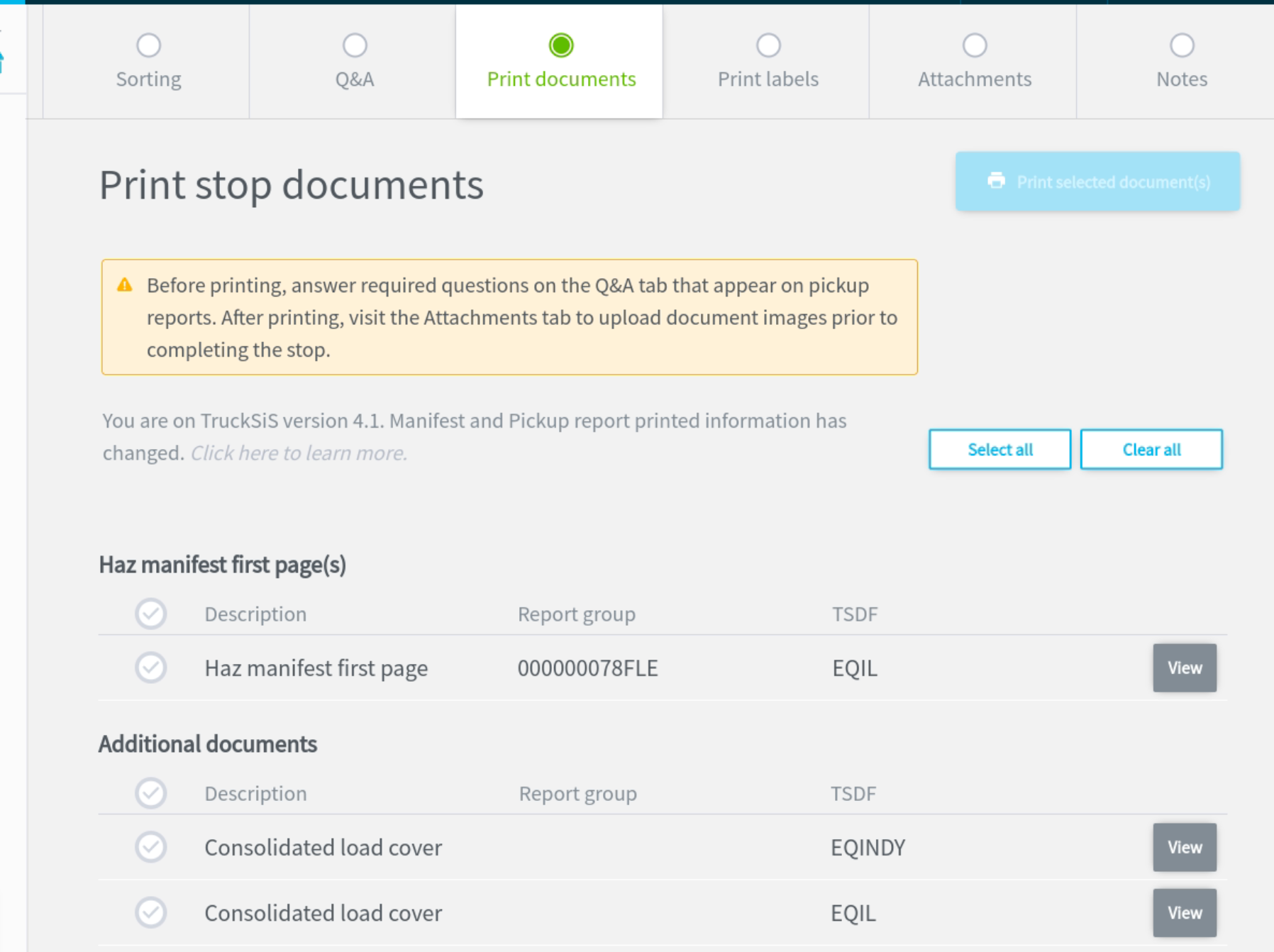
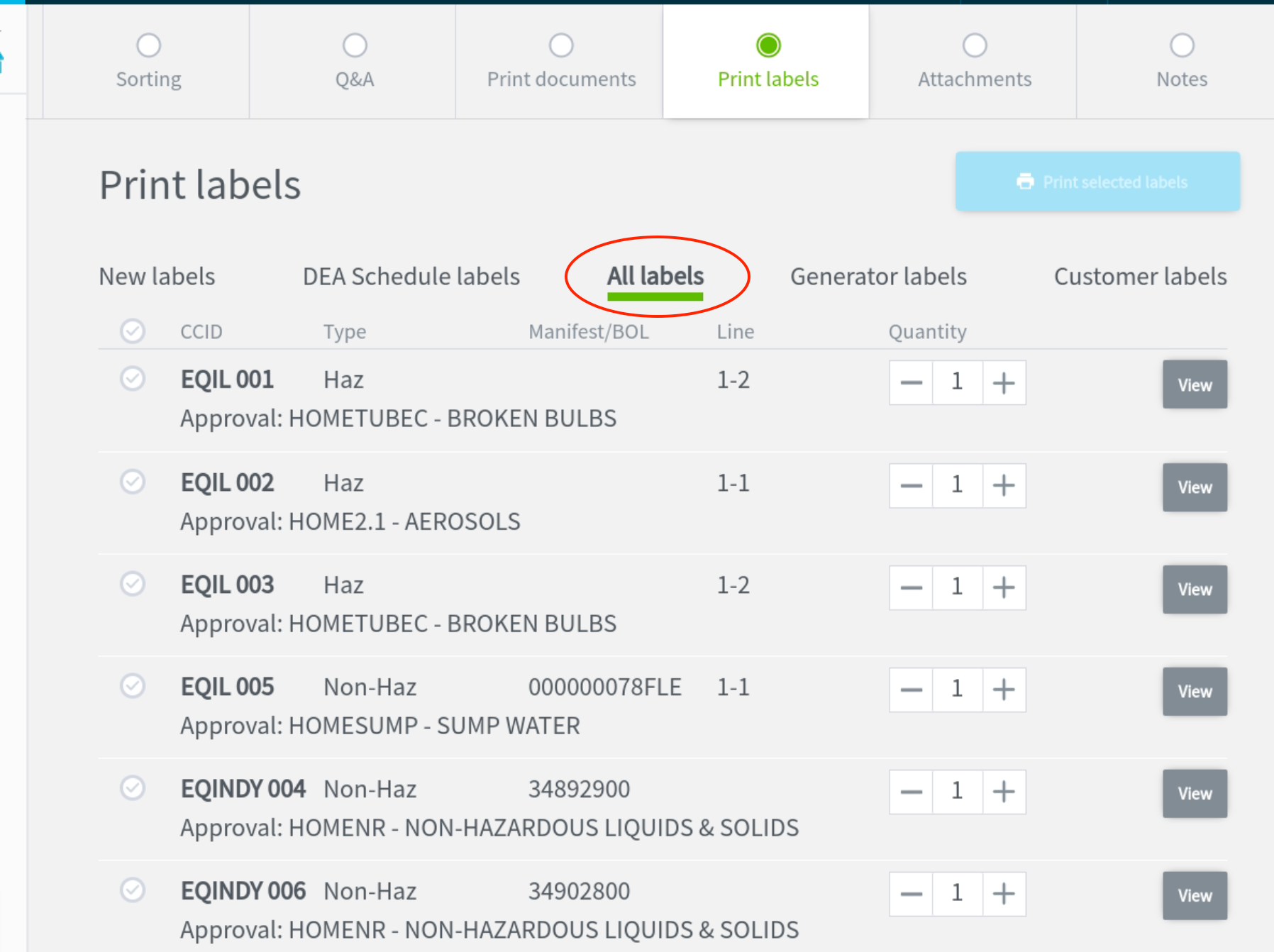
View document PDF
You can view a document before printing by selecting View. A document window will appear showing the document in its current printable state.
Still stuck? Contact support or email support@smartersorting.com Either way it lands straight in our ticket queue.