Data.SmarterSorting.com Retailer Walkthrough
How to sign-up on data.smartersorting.com
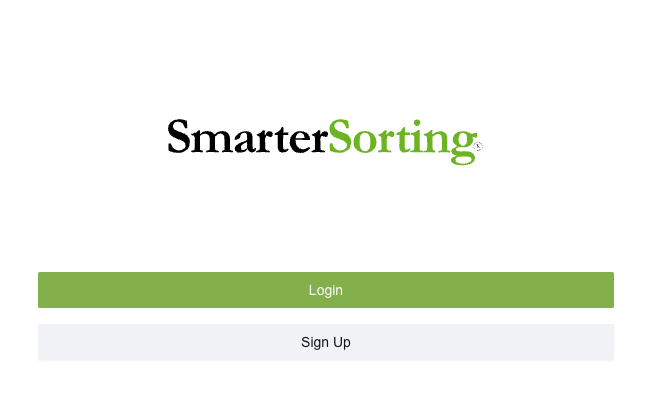
To start, navigate to Smarter Sorting and click 'sign-up'.
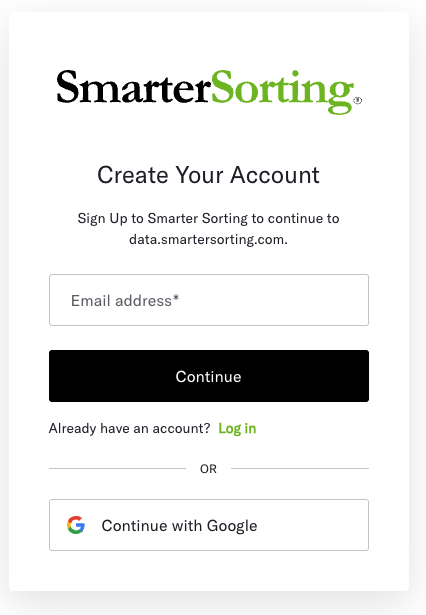
Then, enter an email and password, or connect your Google Account, and click 'continue'.
You will be asked to enter some account information such as Name and Job Title.
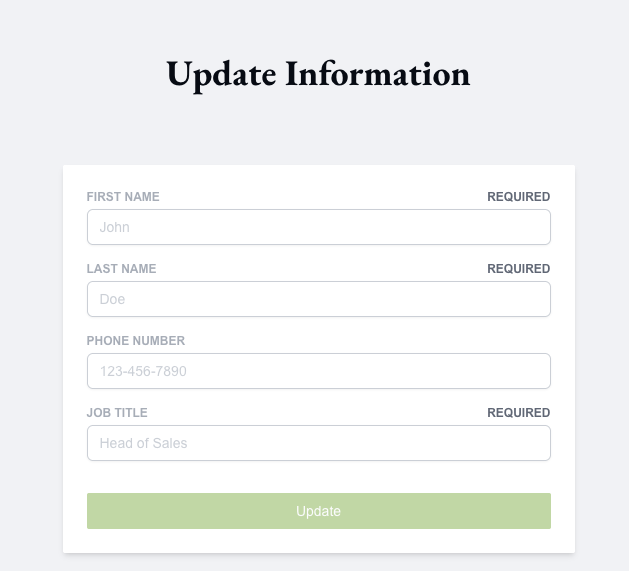
Once you have entered the required information, click 'update'.
You will now be in your dashboard.
Dashboard:
Your dashboard will be filled with all the items Smarter Sorting has shared with you or suppliers have attested to and submitted.
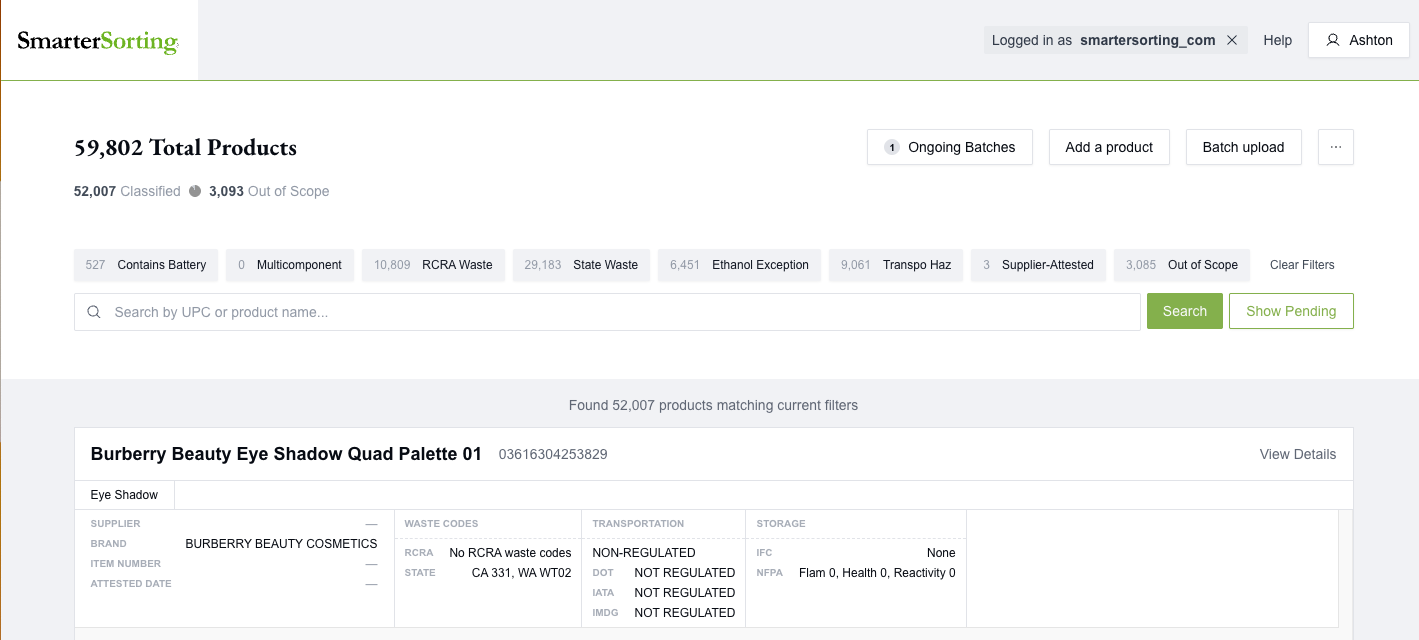
The filters at the top can be used to limit results to certain in-scope items, such as those containing a battery or with a RCRA waste code.
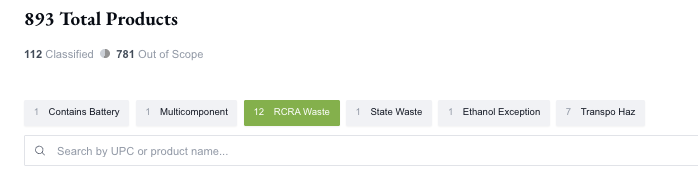
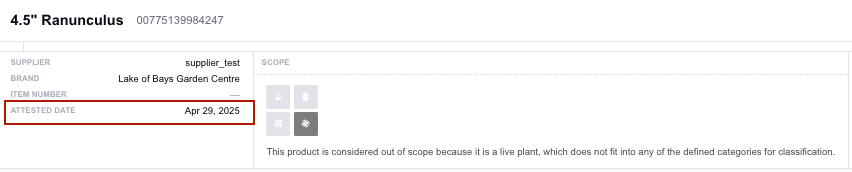
Items that are out of scope will have a gray box indicating the status. But, if the item is in-scope, there will be classification information listed instead:

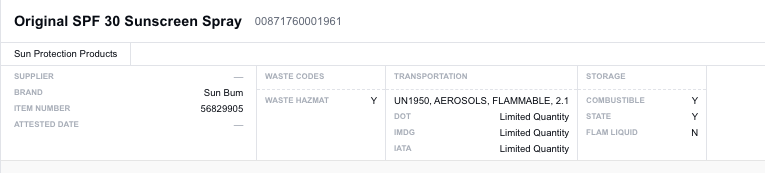
On the item card, the ‘attested date’ will show up for all items that have been supplier attested. If the supplier has not confirmed the information then the date will be blank.
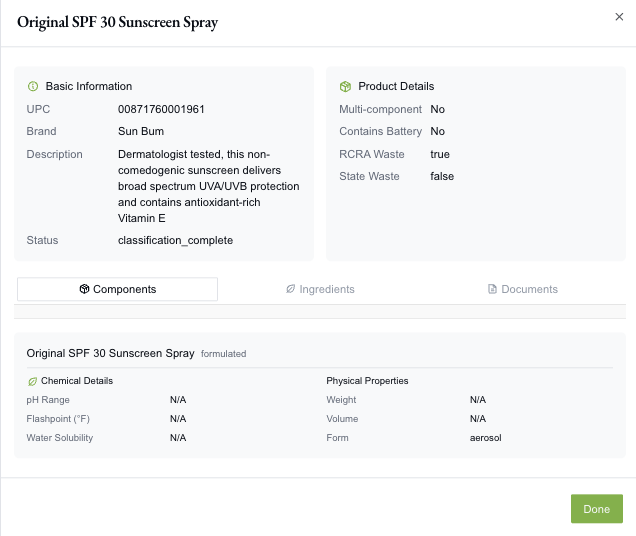
For more information, click on the bolded product name. Doing so will open up a card with basic information, product details, and tabs for the included components, ingredients, and available documents.
Back on your dashboard, in the top right corner click ‘show pending' to see the items that are in progress but not yet fully classified and on your dashboard.

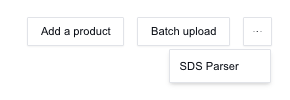
Lastly, by clicking the three dots beside ‘batch upload’, you can access our SDS parser:
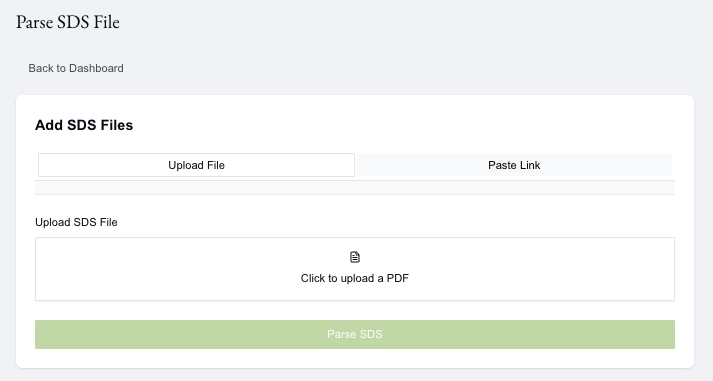
To use the parser, simply upload a file or paste a public link.
If you have any questions or need assistance, please reach out to Support@smartersorting.com.
Still stuck? Contact support or email support@smartersorting.com Either way it lands straight in our ticket queue.