Scanning stop attachments on the Back of Truck System (BOTS/TruckSiS)
This article will walk you through scanning documents for your stop onto your Back of Truck System (BOTS/TruckSiS).
Scan document attachments
You can use the attached wand scanner to scan signed documents and other forms. These attachments will be included in the stop data once the waste pickup is complete. Navigate to Attachments in the work queue to get started.
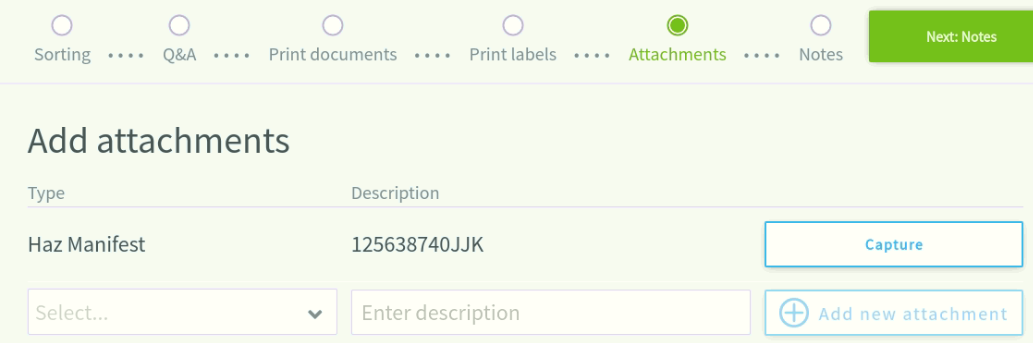
- Printed documents will appear at the top of the screen (e.g. Haz Manifest). Select Capture to begin the attachment process for the selected document.
- Hold the document to feed into the top document slot of the wand scanner. You will feel slight feedback once the wand scanner recognizes a document is ready.
- Select Begin scan to start feeding the document. The scanned document image will appear on the TruckSIS.
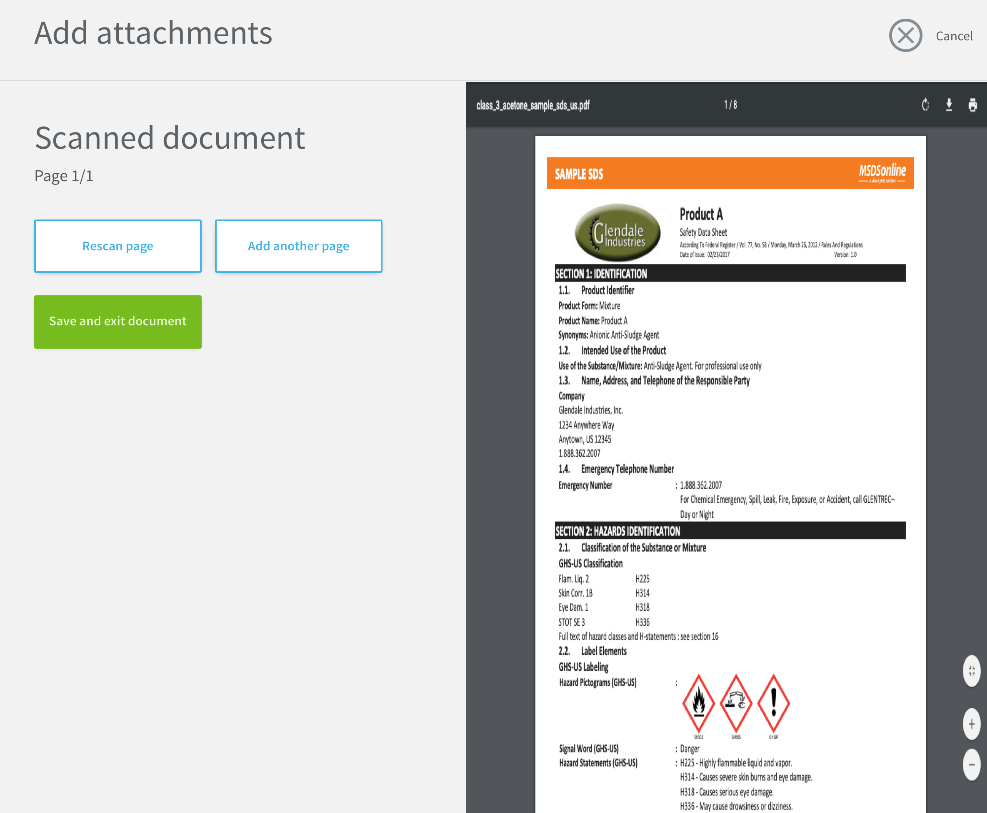
- You can also add a custom attachment by selecting a Type and entering a Description. Then, select Add new attachment and follow the above instructions on scanning a document.
Still stuck? Contact support or email support@smartersorting.com Either way it lands straight in our ticket queue.