Troubleshooting Issues with the Back of Store System Barcode Scanner
Scanner not working as expected. This troubleshooting guide should have you back and scanning in no time.
Issue
My scanner does not seem to be scanning barcodes or beeping as expected.
Resolution
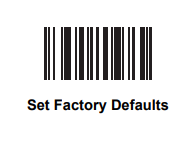
How to reset scanner configuration to factory defaults [6 Steps]
The below steps resolve the most common issues associated with the scanner not working properly with the BOSS (e.g. item not properly scanned, comes back with red flashes/error sound, etc.).
1) Scan the below barcode with your scanner:
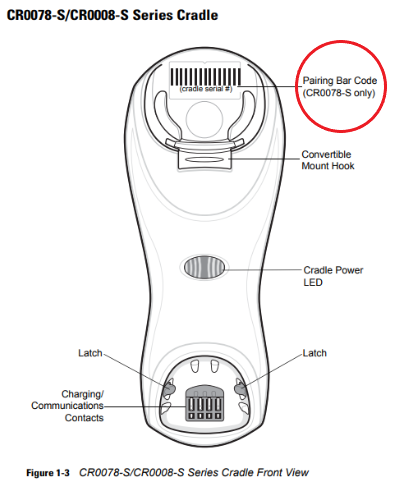
2) Next, scan the ‘pairing barcode’ that is located inside the scanner’s cradle [which is mounted on the side of the BOSS] (image below):
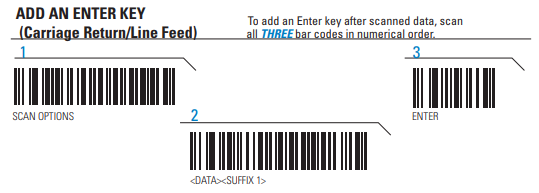
3) Next, scan the below barcodes in sequential order (left to right):
4) Next, scan the below barcode:
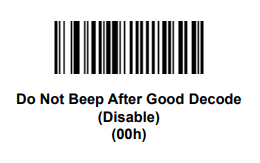
5) Next, scan the below barcode:

6) Lastly, upon successful completion of the barcode scanning sequences above, please reset/restart the BOSS.
If your scanner will still not scan.
- Put the scanner in the docking station and hold the scanning trigger until you see the light on the back of the scanner change to red, and the scanner makes a series of beeps. Then disengage the trigger.
- Remove the scanner from the dock and scan the barcode in the dock.
- You may need to scan the barcode in step 4 above in order to get your scanner gun to properly beep.
If the above steps still result in a non-functional scanner, please contact Smarter Sorting's support.
Still stuck? Contact support or email support@smartersorting.com Either way it lands straight in our ticket queue.