Understanding Approvals on the Back of Truck System (BOTS/TruckSiS)
This video will discuss how approvals work when using the Back of Truck System (BOTS/TruckSiS).
Add a new approval
To add waste profiles as "approvals" to the current stop, begin on the Sorting tab.
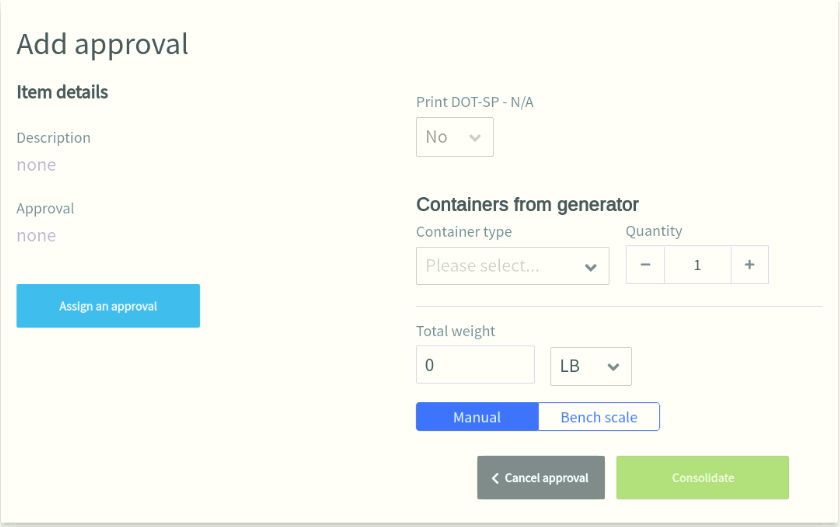
- Select Add approval. The Approval Builder will appear.


- Select Assign an approval to navigate all waste profiles available for the current stop.

- Scroll the approval list or search for your approval by typing into the search bar. All approvals listed include the approval description, approval code/name, and document type.
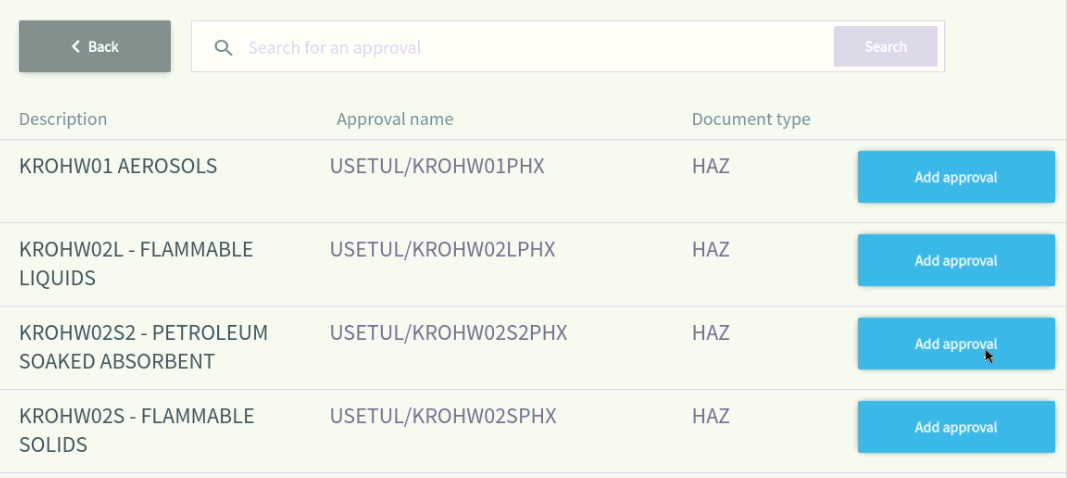
- Select an approval or Add approval to begin adding that waste profile to the current stop.
- Enter the container type and quantity from the generator. If the approval has customer-specific billing units, add these as well.
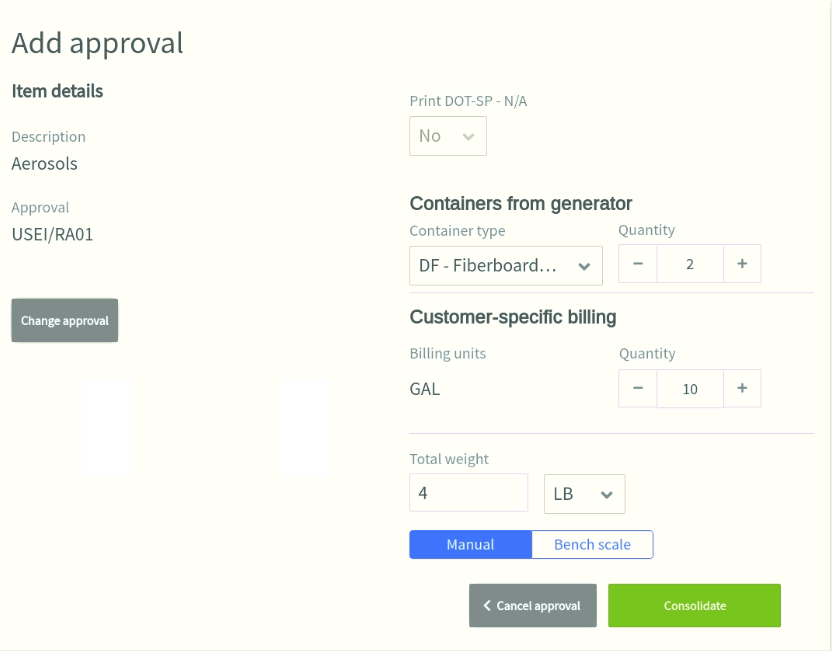

- To enter a total weight, enter a value or use the bench scale to read a weight on the TruckSIS scale.
- Select Consolidate to complete the approval data and begin consolidating the approval into truck inventory [see Consolidate (CCID)].

Still stuck? Contact support or email support@smartersorting.com Either way it lands straight in our ticket queue.