Viewing and Completing My trips on the Back of Truck System (BOTS/TruckSiS)
Need help getting started on viewing and completing stops on the Back of Truck System? Look no further. This article will walk you through downloading your trip through completing it.
Topics
- Add a new trip
- View all trip details
- View completed trips
Add a new trip
To add a new trip locally to your TruckSIS account you must have the trip code and passcode provided with your trip route.
- Access My trips on the left-hand navigation.
- Select Trip code to enter your trip code on the pinpad.
Select Password to enter your trip passcode.
You may also enter your Truck number and Trailer number.
Select Add trip to fetch the trip to your device. The trip card will appear on your trip list.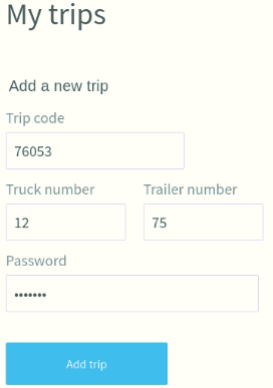
- Select View trip to access waste pickups (stops)

View all trip details
Select View all trip details to see a printable view of trips, stops, and custom pickup notes and directions

Completed trips
Completed trips can still be accessed. To access a completed trip, toggle between My trips and Completed trips. You can remove completed trip cards from your device.

Still stuck? Contact support or email support@smartersorting.com Either way it lands straight in our ticket queue.